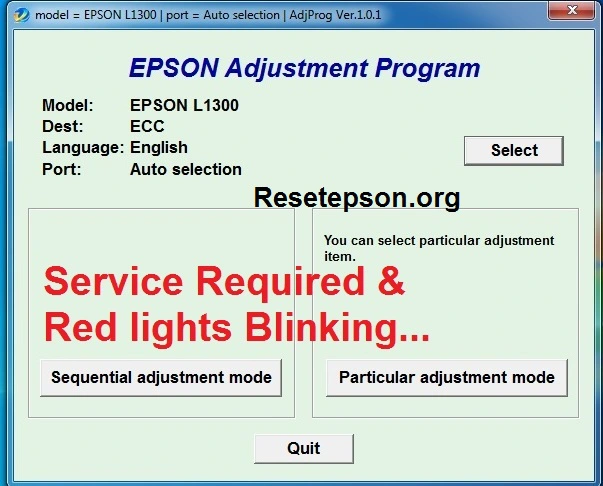
Welcome to the latest tutorial, “Epson L1300 Resetter Adjustment Program.” Suppose your printer has this problem: “Service required” and “All Lights Blinking”. The printer will be linked one by one. The big question is how to solve this. No problem, the solution to this problem will be cleared with the “Adjustment Program tool”. Let me tell you about the Epson L1300 Resetter Adjustment Program.
All you have to do is download the “tool” and reset it. If you want to find out if this is your problem, I’ll show you how to do it in the next step.
If you need technical support, our team is available (anyday desktop support will be provided to you). You must have AnyDesk installed on your computer. Watch the video on how to install.
Solution for Epson Printer Model “Epson L1300” and its many uses, let’s find out today.
Need a password to open the Epson Resetter Zip file. Software Protected with Password. Don’t worry, the password given below line.
All Reset utility’s Zip files Password: 12345
How to check Problem on Computer
If you want to know the error status, you need to install the printer driver. How to Check Epson Error Monitor 3 on Computer, Your computer will show you the printer’s problem display. You can find the solution in the next step.
If it is “Service required”, resetting it with the Epson Adjustment Program will clear your problem. Your printer will return to its old state. There will be no problem for the next 6500 prints.
Epson L1300 Resetter Adjustment Program
Epson printers are best to solve identified Epson L1300 resetter adjustment program problems.
Steps to Solve (This is how you can clear the waste ink pad problems. There are a few steps to follow.)
- Download Resetter Tool and extract the ZIP/RAR file.
- Double-click on the AdjProg.exe file to open Resetter.
- Go to Select button and select Model = Epson L1300, Port = Auto Selection.
- Open Particular Adjustment Mode.
- Select Waste Ink Pad Counter option → Tick Main Pad Counter.
- First click on Check and then click on Initialization.
- Once the program is complete, turn OFF the printer and turn ON again after 10 seconds.
I am also providing a video related to these. It will be very helpful for you. Thank you.
Contact us: Send a Message to the Number. WhatsApp support is also available to our customers.
How to reset the Printer?
All Questions Answer is Below, Try To Solve Your Printer issue “All Light Blinking” & End Of Life” step by step in words.
Epson L1300 Resetter Adjustment Program without password download
Very very nice sir, thank u so much❤
Thank you so much. I was able to reset my printer. Big help talaga. Godbless po ????
SUPPERR LIFESAVERR!!! THANKKK YOUU!!! <3
Thanks very helpful I have done it
Vai amar same problem. Plz help me Plz vai help me